Containers: Docker
The aim of these exercises is to understand how to run containerized software and build a simple one.
Containers registries
There are several repositories where you can find containerised bioinformatics tools:

We will be using Docker locally, as it is commonly employed for developing images. Please remember to install Docker Desktop, as noted on the Welcome page. For further guidance, refer to the official Docker cheat sheet.
In the first bonus exercise, you will get to test other containerised tools:
- fastmixture (estimate ancestry proportions, for example, in humans)
- samtools (view and convert sam/bam/cram files)
- BLAST (local alignment search tool)
- BOWTIE2 (sequencing reads aligner to reference)
Alternatively, explore one of the container image repositories and select a tool that you use regularly. Once you have pulled an image, we recommend starting by running the --help command, as all software has one. This command displays the help documentation of the program, verifying that our image is functioning correctly and includes the intended software. Don’t hesitate to ask for help if needed!
Make sure to mount a directory when running a container. This ensures that any data generated will be saved to your host system. If you do not mount a directory and use the --rm command, all generated data will be lost once the container stops.
- Use
--rmflag to automatically remove the container once it stops running to avoid cluttering your system with stopped containers. - Use
--volumeto mount data into the container (e.g.,/data), for example, your working directory if you are already located in a project-specific dir.
In this exercise, we will utilize the fastmixture Docker image, which is available on DockerHub, the repository for Docker images. To enhance the learning experience, we have chosen a simple genomics analysis, an efficient software tool, Fastmixture, and a sample dataset. Focus on executing the commands, ensuring that this approach is easily adaptable to your own projects and software needs.
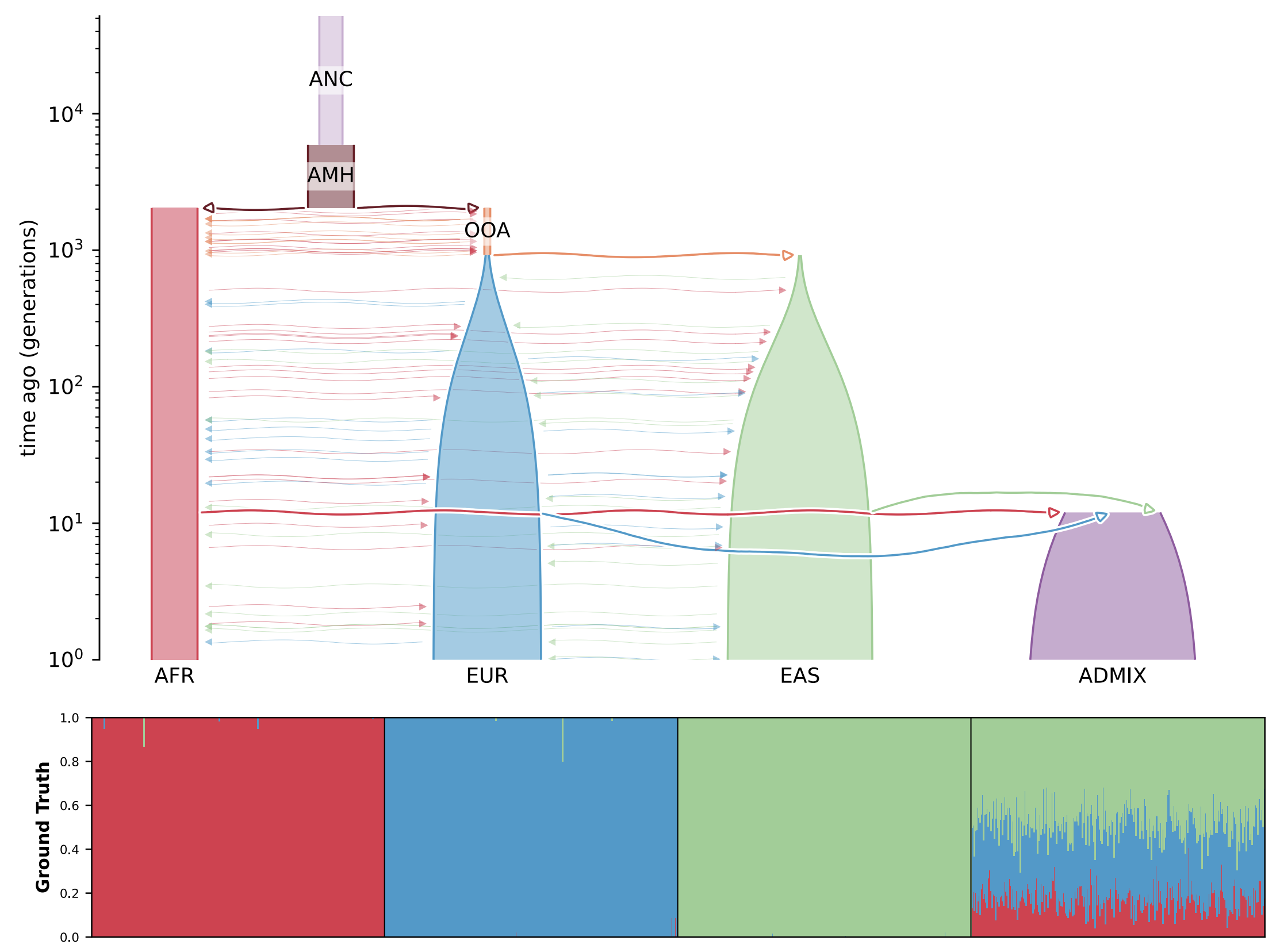
Fastmixture is a software designed to estimate ancestry proportions in unrelated individuals. It analyses genetic data to determine the percentage of various ancestral backgrounds present in a given individual. This tool is essential for understanding demographic histories and modeling population structure. You can view the results of running such analyses in the figure below.
Here are some optional resources you might typically review before running the software (though not required for this exercise):
- Santander, C.G., Refoyo Martinez, A. and Meisner, J., 2024. Faster model-based estimation of ancestry proportions. Peer Community Journal, 4 link to paper
- Software GitHub repository link
Pull the latest version of
fastmixtureimage from DockerHubDownload and unzip the toy data (you may move the files to any preferred folder on your laptop).
Run a command to display the
fastmixtureversion and enter the version number:Run
fastmixturesoftware using the command below. We will set K to 3 because there are three populations (clusters) in our PCA analysis (exploratory analysis). Both--bfileand--outrequire the prefix of a filename, so do not include the file extension. If you have checked the toy folder, you will find the files namedtoy.data.*; therefore, use--bfile toy.data.In
fastmixture, the main arguments used in this exercise are:--K: Specifies the number of ancestral components, representing the sources in the mixture model.--seed: Sets the random seed to ensure reproducibility of the analysis across different runs.--bfile: prefix for PLINK files (.bed, .bim, .fam).--out: Prefix output name.
fastmixture --bfile <input.prefix> --K 3 --threads 4 --seed 1 --out <output.prefix>Do not forget to mount the data (using the flag
-v /path/toy:/path/mnt). Before executing the software, verify that the data has been correctly mounted (e.g., running thelscommand inside the container).Do you have the results in the folder on your local system?
You should look for files named toy.fast.K3.s1.{ext}, where {ext}=["Q", "P", "log"].
- Docker
docker pull albarema/fastmixture # Pull This solution assumes you’re running the container from the directory that contains the toy data folder:
Linux/Mac
docker run -v `pwd`/toy/:/data/ albarema/fastmixture

fastmixture --bfile data/toy.data --K 3 --out data/toy.fast --threads 8 # run the command
Windows
# Option 1
docker run -v ${PWD}\toy:/data albarema/fastmixture
# Option 2
docker run -v C:\Users\YourName\toy:/data albarema/fastmixture

fastmixture --bfile data/toy.data --K 3 --out data/toy.fast --threads 8 # run the command
Note When mounting the data, ensure that the path you provide actually exists. If you encounter an error indicating that the .bfile does not exist, it likely means the data was not mounted correctly. Tip for Windows users: The correct path might be ${PWD}\toy\toy — double-check that the folder structure are accurate.
- Apptainer on HPC / local machine: on your local machine, you will need to modify lima.yml to make the current directory (
pwd) writable. Alternatively, write the data out to /tmp/lima!
apptainer pull docker://albarema/fastmixture
apptainer run fastmixture_latest.sif fastmixture --version

# on local machine (using LIMA)
cd toy # from data folder
apptainer pull /tmp/lima/fastmixture_latest.sif docker:/albarema/fastmixture
apptainer run /tmp/lima/fastmixture_latest.sif fastmixture --bfile toy.data --K 3 --out toy.fast --threads 8You run a container from DockerHub, the biocontainers/bwa-mem2 container. Choose the tag v1.9-4-deb_cv1. We will use samtools to view and convert BAM files. Once the image is saved in your wd, use the container to:
- Pull the image from Dockerhub (https://hub.docker.com/r/biocontainers/samtools)
- Read a
.bamfile from an URL (https://github.com/roryk/tiny-test-data/raw/refs/heads/master/wgs/mt.sorted.bam) - Use samtools to read the file and save it locally into BAM format (using the
-hflag to ensure the header is included, and the-Oto choose the BAM format as input) - Save the output to a new file called
test01.bam(be careful with the mounting!) - Does your bam file look like this (see below)?
198d4514-09bb-4f68-bdec-15f2699d3fb9 163 chr1 630214 0 101M 630449 336 CAGTTCTACCGTACAACCCTAACATAACCATTCTTAATCTAACTATTTATATTATCCTAACTACTACCGCATTCCTACTACTCAACTTAAACTCCAGCACC <@B?@AB@@B:@@A@CABCC@CAAAADACAABCCBAA?CCADACAACBAAAACAACCDBDBDABCAAC;CAABCCDABCABDCADBDCBDCBDD?ADCAB? NM:i:1 MD:Z:38T62 MC:Z:101M AS:i:96 XS:i:96 XA:Z:chrM,+5044,101M,1;samtools view -h <bamfile>Use samtools view to check the first 1-2 lines of the file.
You can find the image path: https://hub.docker.com/r/biocontainers/samtools.
docker pull biocontainers/samtools:v1.9-4-deb_cv1
# Run samtools on Mac
docker run -v `pwd`:/data/ \
        --platform linux/amd64 \
        --rm biocontainers/samtools:v1.9-4-deb_cv1 \
        samtools view \
        -h https://github.com/roryk/tiny-test-data/raw/refs/heads/master/wgs/mt.sorted.bam \
        -o test01.bam

# on Windows
docker run -v ${PWD}\toy:/data --platform linux/amd64 \
        --rm biocontainers/samtools:v1.9-4-deb_cv1 \
        samtools view \
        -h https://github.com/roryk/tiny-test-data/raw/refs/heads/master/wgs/mt.sorted.bam \
-o test01.bamBLAST - Build a BLAST protein database from zebrafish protein sequences.
Zebrafish is a widely used model organism in genetics. This small dataset will facilitate quick results, allowing us to focus on how to run different bioinformatics tools so that you can easily adapt the commands in future projects.
- Download a BLAST container
- Explore how to run BLAST tools
- Download a reference dataset (zebrafish proteins)
- Prepare it as a BLAST database
Docker: follow the steps in Running BLAST: https://biocontainers-edu.readthedocs.io/en/latest/running_example.html.
docker pull biocontainers/blast:2.2.31
docker run biocontainers/blast:2.2.31 blastp -help
mkdir zebrafish-ref
# Max/Linux
docker run -v `pwd`/zebrafish-ref/:/data/ biocontainers/blast:2.2.31 curl -O ftp://ftp.ncbi.nih.gov/refseq/D_rerio/mRNA_Prot/zebrafish.1.protein.faa.gz
docker run -v `pwd`/zebrafish-ref/:/data/ biocontainers/blast:2.2.31 gunzip zebrafish.1.protein.faa.gz
docker run -v `pwd`/zebrafish-ref/:/data/ biocontainers/blast:2.2.31 makeblastdb -in zebrafish.1.protein.faa -dbtype prot

# Windows
docker run -v ${PWD}\zebrafish-ref/:/data/ biocontainers/blast:2.2.31 curl -O ftp://ftp.ncbi.nih.gov/refseq/D_rerio/mRNA_Prot/zebrafish.1.protein.faa.gz
docker run -v ${PWD}\zebrafish-ref/:/data/ biocontainers/blast:2.2.31 gunzip zebrafish.1.protein.faa.gz
docker run -v ${PWD}\zebrafish-ref/:/data/ biocontainers/blast:2.2.31 makeblastdb -in zebrafish.1.protein.faa -dbtype prot
Are you ready to build your own Docker image? Let’s get started by building a Jupyter Notebook container! We’ll share several helpful tips to guide you through the process effectively. You might not be familiar with all the concepts, but Google them if you’re uncertain.
- Create a Dockerfile in a project-specific dir (e.g., sandbox-debian-jupyter). We will add a command to clean up the package after installation, which is a common practice to reduce the image size.
Dockerfile
FROM debian:stable

LABEL maintainer="Name Surname <abd123@ku.dk>"

# Update package list and install necessary packages
RUN apt update \
    && apt install -y jupyter-notebook \
                      python3-matplotlib \
                      python3-pandas \
                      python3-numpy \
    && apt-get clean \
    && rm -rf /var/lib/apt/lists/* # cleanup tmp files created by apt

# You may consider adding a working directory
WORKDIR /notebooks
From the project-specific dir, build the Docker image using, for example,
docker build -t sandbox-debian-jupyter:1.0 .Testing the custom image. Let’s verify if the custom image functions as expected by running the following command:
Terminal
docker run --rm -p 8888:8888 --volume=$(pwd):/root sandbox-debian-jupyter:1.0 jupyter-notebookJupyter typically refuses to run as root or accept network connections by default. To address this, you need to either add --ip=0.0.0.0 --allow-root when starting Jupyter to the command above or uncomment the last line in the Dockerfile above (CMD ["jupyter-notebook", "--ip=0.0.0.0", "--allow-root"]). Test this before moving on!
Alternatively, you can run the container with the flag --user=$(id -u):$(id -g) to ensure that files created in the container have matching user and group ownership with those on the host machine, preventing permission issues. However, this restricts the container from performing root-level operations.
For broader usability and security, it is advisable to create a non-root user (e.g., jovyan) within the Docker image by adding user setup commands to the Dockerfile (see below). This approach makes the image more user-friendly and avoids file ownership conflicts.
Dockerfile2
##
## ----- ADD CONTENT FROM Dockerfile HERE -----
##

# Creating a group & user
RUN addgroup --gid 1000 user && \
    adduser --uid 1000 --gid 1000 --gecos "" --disabled-password jovyan

# Setting active user
USER jovyan

# setting working directory
WORKDIR /home/jovyan

# let' automatically start Jupyter Notebook
CMD ["jupyter-notebook", "--ip=0.0.0.0"]- Use
--rmflag to automatically remove the container once it stops running - Use
--volumeto mount data into the container (e.g./home/jovyan) - Use
--fileflag to test two Dockerfile versions (default: “PATH/Dockerfile”)
docker build -t sandbox-debian-jupyter:2.0 sandbox-debian-jupyter -f sandbox-debian-jupyter/Dockerfile2Now that we have fixed that problem, we will test A. using a port to launch a Jupyter Notebook (or RStudio server) and B. starting a bash shell interactively.
# Option A. Start jupyter-notebook or on the server
docker run --rm -p 8888:8888 --volume=$(pwd):/home/jovyan sandbox-debian-jupyter:2.0

# Option B. Start an interactive shell instead
docker run -it --rm --volume=$(pwd):/home/jovyan sandbox-debian-jupyter:2.0 /bin/bash
If you make changes to the container (incl. installing software), you need to commit the changes to a new image (docker commit).